Openbox on NetBSD 11.0
For the past few weeks I’ve been exploring the use of NetBSD as a desktop OS. If the X sets are chosen during install, NetBSD includes an X server and the lightweight CTWM window manager integrated into its base system.
There is, however, another window manager I’ve long had a soft spot for, and that is Openbox. Its very bare bones to start with, but its an excellent foundation for crafting a desktop just the way I like it!
Most of the details below are equally applicable to setting up Openbox on Linux or the other BSDs. Only the OS-specific configuration details and perhaps some of the package names will differ.
Installation
Install the window manager:
doas pkgin install openboxExtra desktop components:
doas pkgin install alacritty dbus dunst feh firefox i3lock lxappearance obconf picom rofi scrot viewniorTheming:
doas pkgin install gnome-themes-standard gtk2-engines-murrine adwaita-icon-theme papirus-icon-theme xcursor-themesFonts:
doas pkgin install dejavu-ttf ibm-plex-ttf liberation-ttf noto-fonts noto-cjk-fonts noto-emoji-ttfLaunch
Copy the system xinitrc file to the user’s home directory:
cp /etc/X11/xinit/xinitrc ~/.xinitrc ; chmod 600 ~/.xinitrcComment out the ctwm entry and add openbox:
#exec ctwm -W
exec openbox
Save changes and exit.
Run startx(1) to launch the window manager:
startxBehold in all its glory!

Now let’s tweak this glorious blank canvas. 😺
Configuration
Openbox
Copy the default configuration files to the user’s home directory:
cp -av /usr/pkg/etc/xdg/openbox ~/The bulk of the configuration is contained in two files: rc.xml and menu.xml.
rc.xml
Using my own rc.xml as an example:
-
DESKTOPS: I create 5 desktops for my work environment.
-
KEYBOARD SHORTCUTS: These are custom key combinations that perform a range of actions: switch desktops and windows, move windows between desktops, tile windows, toggle window maximization and decorations, display menus, exit/reboot/shutdown system.
-
APPLICATION SETTINGS: Configure certain applications and types of windows to behave a certain way: open on specified desktops, always launch maximized, toggle window decorations, etc.
NOTE
To find the class and name parameters for the entries, see: Application parameters
menu.xml
Openbox includes a menu that appears upon a right-click on an empty desktop area or by a keyboard shortcut set in rc.xml.
Additional files:
autostart
Actions and applications to be launched when starting Openbox are included in this file. I tend to only place Openbox-specific entries in this file, with everything else going in ~/.xinitrc.
environment
Set user-specific environment variables. I don’t use this file. All these settings are configured elsewhere in the system.
Auto-start X
Upon login on the first console, I configure ~/.profile to auto-start an X session. Upon exit, the user is logged out of the console:
if [ -z "$DISPLAY" ] && [ "$(tty)" = "/dev/constty" ]; then
    exec startx > "$HOME/.xlog" 2>&1
fi
Exit/Reboot/Shutdown
Requisite commands are placed in menu.xml:
  <item label="Exit">
    <action name="Exit"><prompt>no</prompt></action>
  </item>
  <item label="Reboot">
    <action name="Execute">
      <command>shutdown -r now</command>
    </action>
  </item>
  <item label="Shutdown">
    <action name="Execute">
      <command>shutdown -p now</command>
    </action>
  </item>
Desktop Components
These are some of the components I like to use to craft my personal desktop experience.
System messaging: D-Bus
The best practice for modern desktop applications is to use both a system-wide D-Bus service and a per-user session bus.
To enable the system bus:
doas cp /usr/pkg/share/examples/rc.d/dbus /etc/rc.d/
echo "dbus=YES" | doas tee -a /etc/rc.conf
doas service dbus start
To start the session bus when Openbox runs, modify ~/.xinitrc:
#exec openbox
exec dbus-run-session -- openbox-session
Application launcher: rofi
To search for and run applications I use rofi(1), a dynamic menu utility.
I set a keyboard shortcut Super + Spacebar that opens a horizontal menubar across the top of the display and, as I type the name of the application, the menu zooms in on matching names. The most frequently-used applications move to the beginning of the list for quick access.
Menu behaviour and appearance can be modified by creating the ~/.config/rofi/config.rasi file.
Desktop background: feh
Image viewer feh(1) is used to display a background image:
feh --bg-scale /path/to/your/background/image.jpgOnce an image is set, feh stores the details in ~/.fehbg. Add an entry to .xinitrc to restore the background on next launch:
sleep 1; $HOME/.fehbg &NOTE
Add sleep 1; to avoid Openbox overwriting the image at launch with a solid colour background.
Desktop panel: none
Openbox does not have a built-in desktop panel, and currently I haven’t felt the need to add one.
Openbox does include a window/desktop menu, which I set to display with the keyboard shortcut Super + Shift + Spacebar. In the past, when I did use a desktop panel with Openbox, I was happy with tint2(1).
Clock: clock-rs
A clock is usually included in a desktop panel, but I’m not using a panel on Openbox. I wanted a clock that would pop up on demand using a key combo, and liked the chunky font look of clock-rs.
Notifications: dunst
A nice lightweight notification daemon for desktop events is dunst(1).
Copy the default configuration to your home directory:
cp -av /usr/pkg/share/dunst ~/.config/To configure ~/.config/dunst/dunstrc see dunst(5) for options.
Add entry to ~/.xinitrc:
dunst -config $HOME/.config/dunst/dunstrc &Terminal: alacritty
Upon startx I automatically launch this terminal by adding to ~/.xinitrc:
alacritty &Screenshots: scrot, viewnior
Screenshots are captured using scrot(1) and the resulting image is displayed using viewnior(1).
In menu.xml I created a custom Screenshots sub-menu to capture various types of screenshot, save the captured image to ~/image/screenshot, and display the image.
Screen lock: i3lock
I created a script that uses i3lock to lock the screen, which I’ve set to use keyboard shortcut Super + l to activate.
Suspend/Resume
Determine which type of sleep states our hardware supports:
sysctl hw.acpi.sleep.statesRun this command with these options to check if the S3 suspend state works correctly:
doas sysctl -w hw.acpi.sleep.state=3 &I created a script that locks the screen and suspends the device, and a keyboard shortcut Super + z to execute the script.
NOTE
I don’t use the “suspend on lid closure” action. I’m paranoid about failing to notice that the device might have failed to properly suspend and it subsequently overheats in my bag. Regardless, opening the lid will wake up the (locked) machine.
Appearance
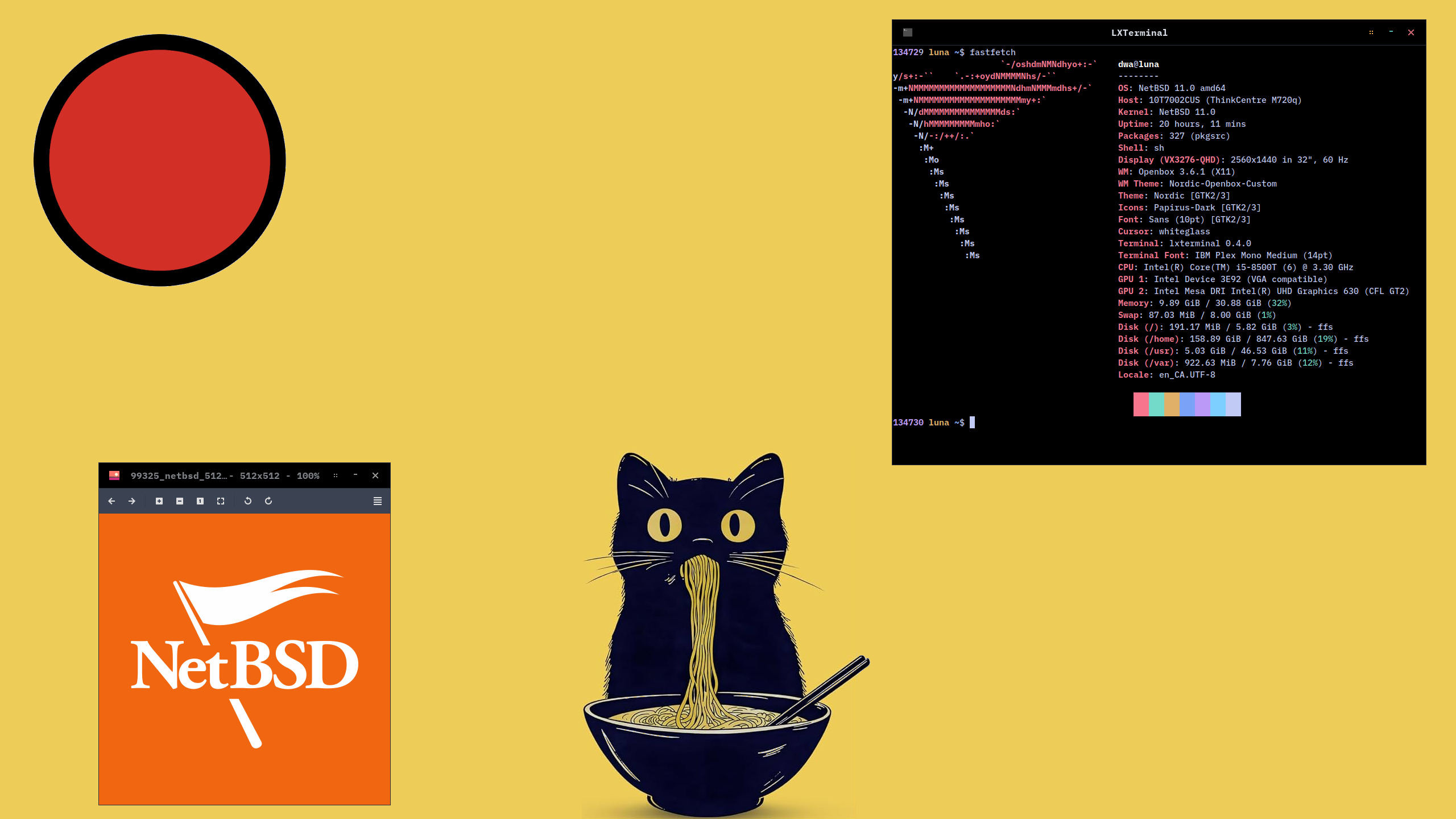
While “pleasing to the eye” is relative, I prefer a darker theme and I’m happy with the combination of fonts, icons, and colours outlined below.
Fonts
I use the IBM Plex Mono font for the Openbox menus and window bar titles.
Verify that these fonts are recognized and available for use by using fc-match(1):
$ fc-match "IBM Plex Mono"
IBMPlexMono-Regular.ttf: "IBM Plex Mono" "Regular"
Openbox theme
Create:
mkdir ~/.themesDownload the Nordic Openbox theme, and copy theme to ~/.themes/Nordic-Openbox.
Launch the obconf configuration tool. Set Theme to Nordic-Openbox.
NOTE
I modified the Nordic-Openbox themerc file to change the titlebar backgrounds to #000000.
GTK theme
I like the Nordic theme. Download and install in ~/.themes/Nordic.
Launch the lxappearance theme editor. Set the GTK Widget theme to Nordic and Icon Theme to Papirus-Dark. Click Apply then Close.
Xcursor
On my system I found the default cursor size to be quite small. I want to use the Adwaita cursor (previously installed with adwaita-icon-theme) and a larger size.
Cursor icons are located at /usr/pkg/share/icons/Adwaita/cursors.
Create:
mkdir -p ~/.icons/default
ln -s /usr/pkg/share/icons/Adwaita/cursors ~/.icons/default/cursors
Add to ~/.config/openbox/autostart:
export XCURSOR_THEME="~/.icons/default/cursors"Add to .Xresources:
Xcursor.size: 32Finish
Grey begone!
Resources
- My configuration files:
- My scripts:
- Openbox Documentation
- NetBSD Guide: Other window managers or desktop environments
- FreeBSD Desktop series by vermaden: Configuration - Openbox
You can like, share, or comment on this post on the Fediverse 💬
« Previous: NetBSD: After First Boot